Quickstart: Your First Weather Simulation
First published: October 2026
Last updated: October 23, 2026
[!TIP] You do not need to install anything or prepare custom data to complete this quickstart. You can use any of the preloaded global meteorological stations to generate your first stochastic simulation in under 3 minutes.
This walkthrough will guide you step-by-step through generating your first 10-year synthetic weather record and comparing it against the historical baseline.
Step 1: Open the Application & Select a Station
- Navigate to the Stochastic Climate Simulator dashboard in your web browser.
- In the top navigation bar, locate the Data Source card.
- Click the interactive map or use the search bar to locate a station near your area of interest (for example, search for Denver International Airport, CO or Salt Lake City, UT).
- Click on the station pin. A summary pop-up will display the station's elevation, latitude, longitude, and available years of record (e.g., 1980–2023).
- Click Use This Station. The application will automatically fetch and sanitize the daily precipitation and temperature history.
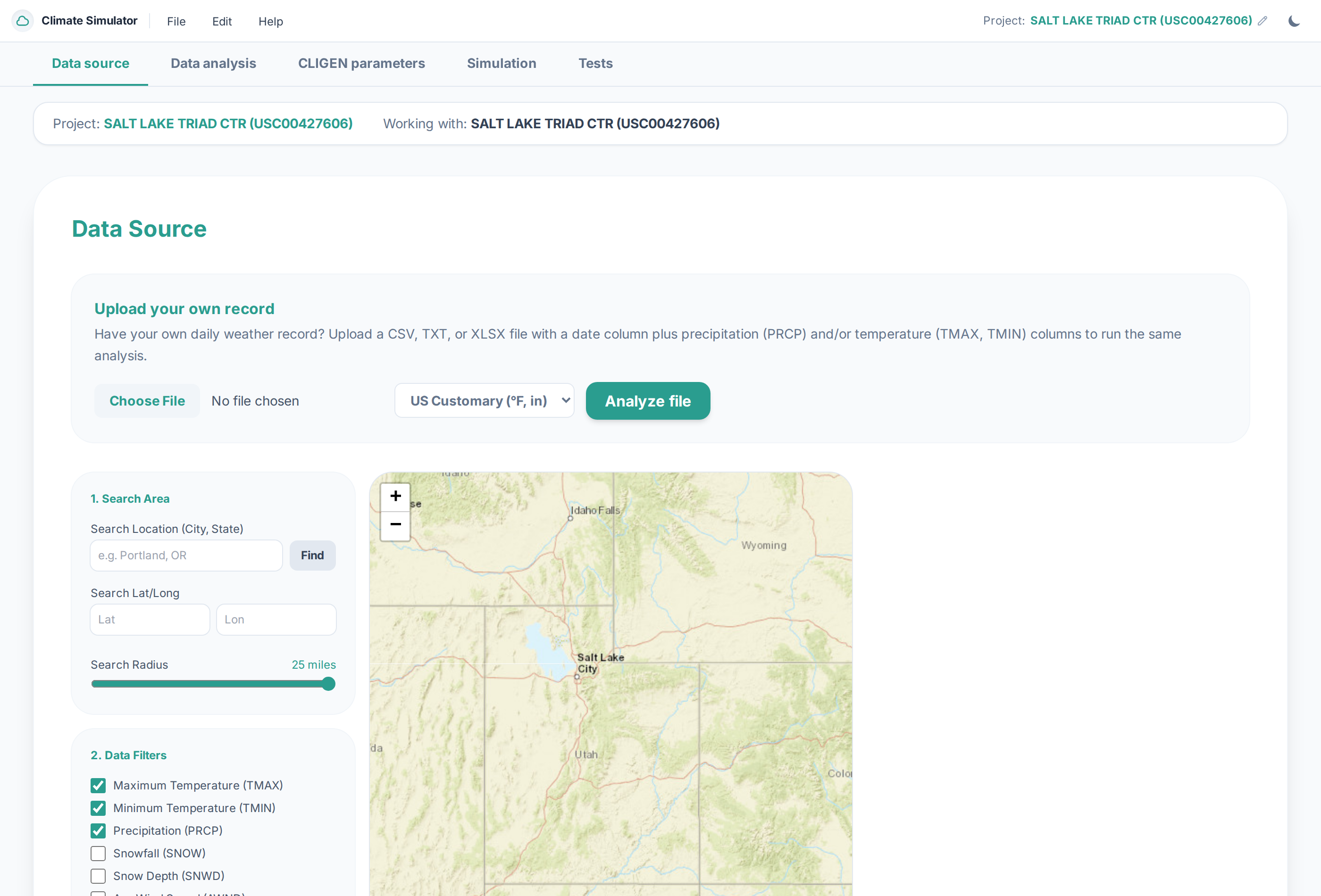 Figure 1: The Data Source tab featuring the interactive station map and custom gauge record uploader.
Step 2: Review the Historical Climate Profile
Once the station data loads, the Historical Data Analysis panel will automatically populate:
- Precipitation Distribution Chart: Displays average monthly rainfall totals, wet-day frequencies, and peak daily storm events recorded over the historical period.
- Temperature Envelope Chart: Illustrates the seasonal cycle of daily maximums, minimums, and average temperatures throughout the year.
- Key Summary Cards: Displays the overall annual average precipitation, hottest recorded day, coldest recorded night, and total record completeness percentage.
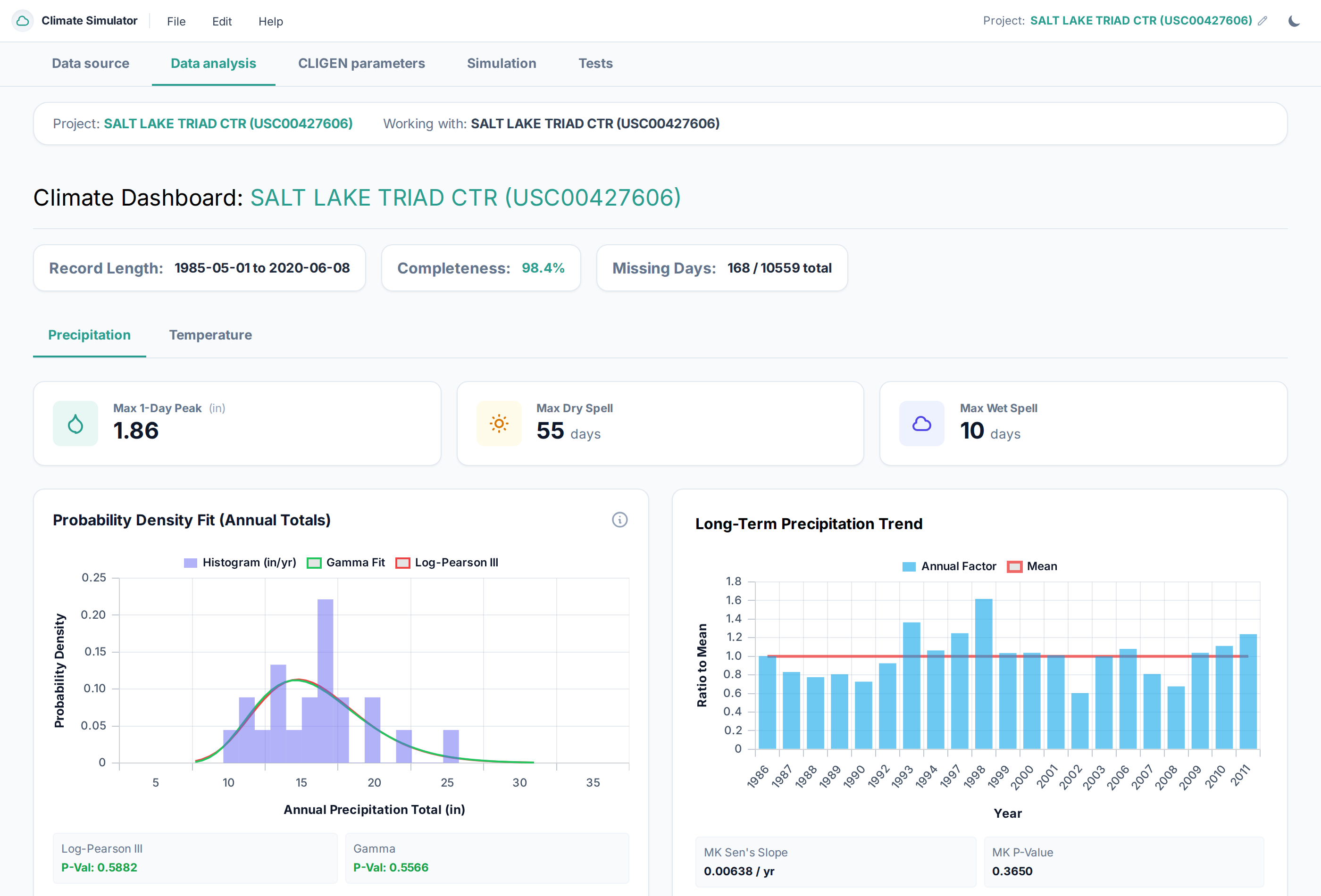 Figure 2: Historical record screening for Salt Lake Triad Ctr, showing record completeness (98.4%), probability density fits, and long-term rainfall trends.
Take 30 seconds to visually confirm that the historical record looks sensible and representative for your region.
Step 3: Calibrate the CLIGEN Parameters
- Scroll down to the CLIGEN Parameters panel (or click Parameters in the top navigation bar).
- Click the blue Calculate Parameters button.
- Within 1–2 seconds, the application fits the historical record to the standard USDA CLIGEN statistical equations:
- Precipitation Occurrence ($P(W|W)$ and $P(W|D)$): The transition probabilities governing rain storm persistence.
- Precipitation Depth ($\text{Mean}$, $\text{StdDev}$, $\text{Skew}$): The shape parameters governing storm intensity distributions.
- Temperature Parameters: Monthly mean maximum/minimum temperatures conditioned on whether the day is wet or dry.
- The calculated 12-month parameter tables will appear in two interactive tables: Precipitation Parameters and Temperature Parameters.
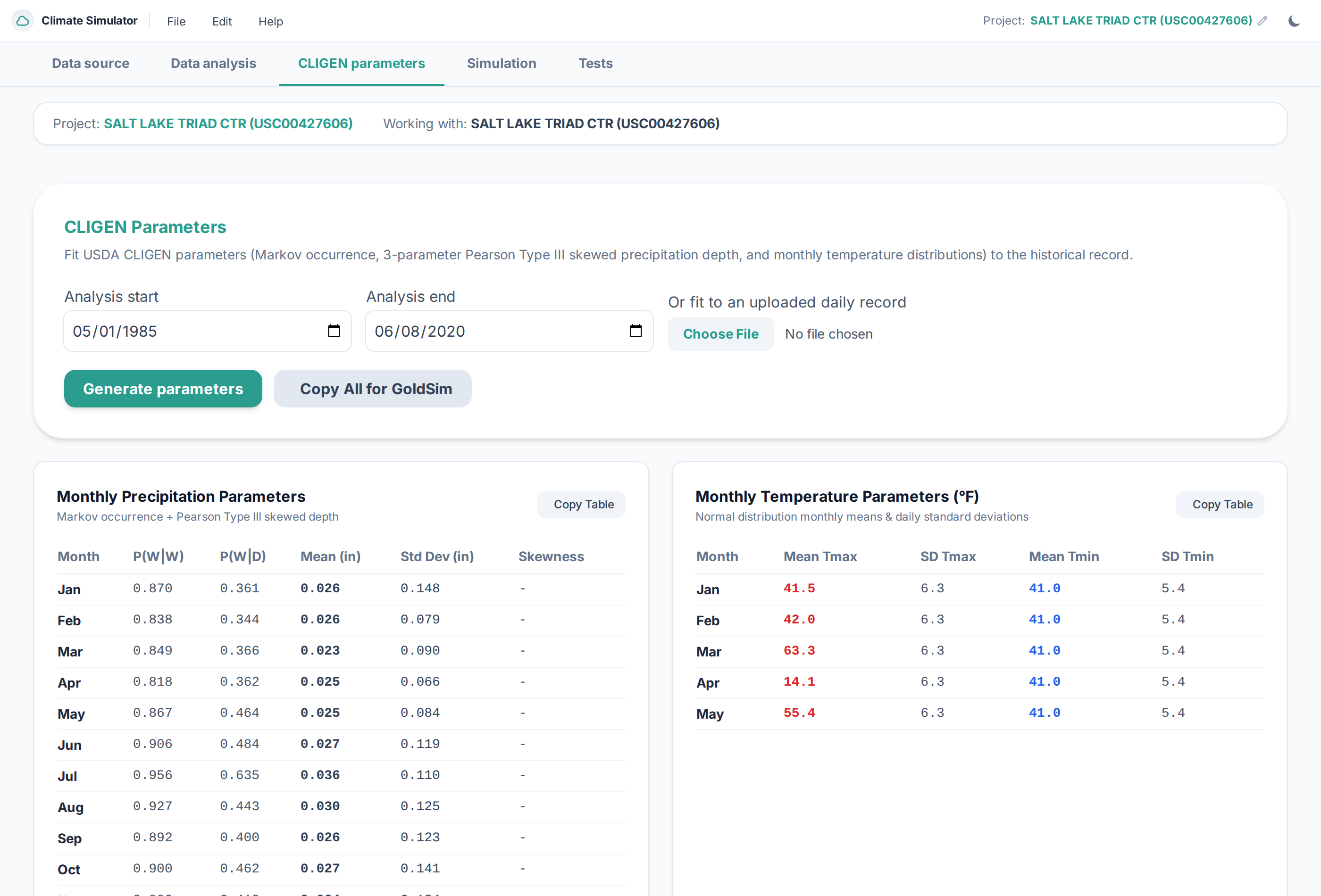 Figure 3: Calibrated monthly CLIGEN parameter tables with one-click copy buttons for direct GoldSim pasting.
Step 4: Run a 10-Year Stochastic Simulation
Now that your parameters are calibrated, you are ready to synthesize new weather:
- Scroll to the Stochastic Simulation panel.
- Under Simulation Duration, select 10 Years.
- Under Time Step, leave the default setting as Daily (24h).
- Set the Number of Realizations to 10 to inspect the ensemble spread.
- Click the green Run Simulation button.
The simulator engine will immediately generate synthetic daily precipitation, maximum temperature, and minimum temperature sequences.
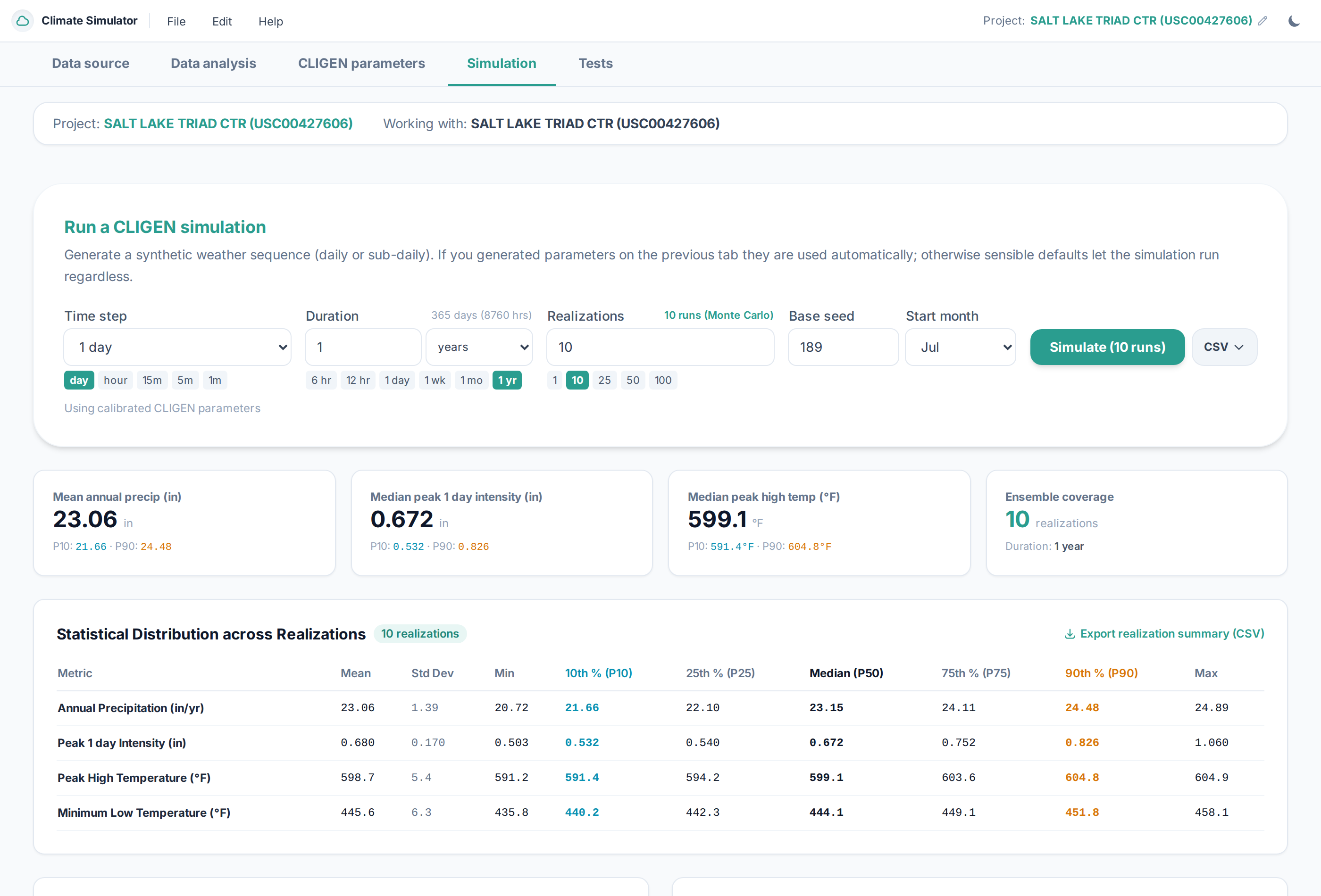 Figure 4: Active simulation panel displaying Monte Carlo run settings and statistical percentiles across realizations.
Step 5: Compare Synthetic Results vs. Historical Baseline
When the simulation completes, inspect the Simulation Analysis tabs:
- Monthly Comparison: Switch to the Statistical Parity tab. Notice how closely the synthetic monthly rainfall averages trace the historical averages. The simulator preserves long-term climatic normals while creating unique daily weather patterns.
- Extreme Value Check: Look at the maximum daily storm depth in the simulation. Notice that the synthetic series produces realistic peak storm events without exceeding physically plausible limits.
- Daily Hyetograph & Thermograph: Zoom in on any individual year to observe realistic weather behavior: rainy days naturally experience smaller diurnal temperature swings, while dry sunny periods produce warmer daytime highs.
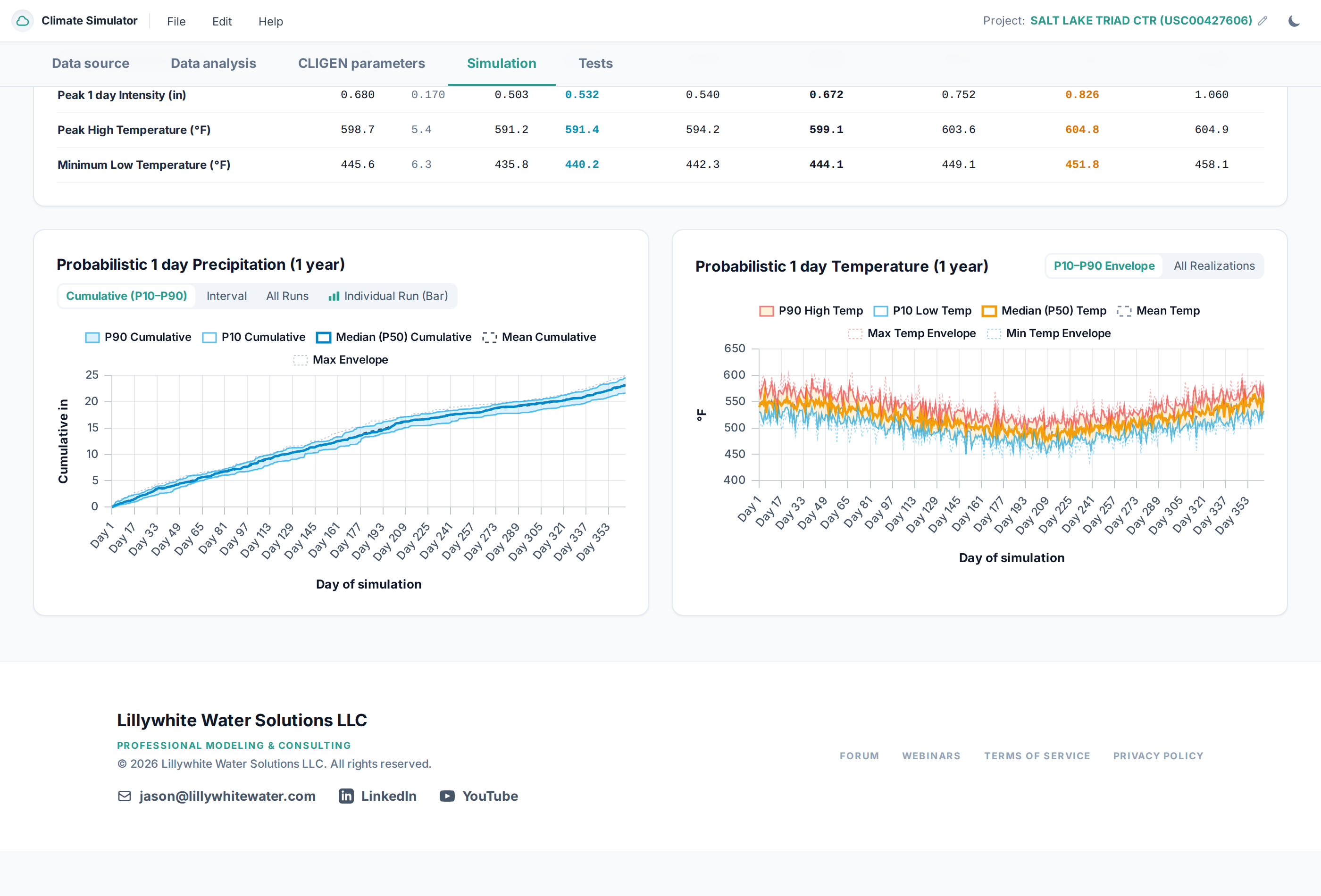 Figure 5: Synthetic simulation results showing cumulative precipitation (P10, P50, P90 percentiles) and daily temperature envelopes.
Step 6: Export Your Results
You can export your results in three convenient formats:
- Export Time Series (CSV / Excel): Download the daily synthetic date, precipitation, $T_{\max}$, and $T_{\min}$ series for use in spreadsheets or hydrological runoff models (HEC-HMS, SWMM, R-THYM).
- Copy Parameters to Clipboard: Copy the 12-month CLIGEN parameter tables formatted for direct pasting into GoldSim Data elements.
- Download GoldSim DLL: Download the high-speed 64-bit Windows dynamic link library (CligenWeather.dll) to run dynamic Monte Carlo simulations directly inside your desktop GoldSim software.
Congratulations! You have completed your first stochastic climate workflow. In the next section, we will explore station selection on the map and uploading custom gauge records.