Exploring the Example Models
When learning a new engineering tool, the easiest way to understand its capabilities is to interact with a pre-built model before trying to construct one from scratch. R-THYM provides example models that are fully configured and ready to run.
Accessing Example Projects
To find the pre-built example models:
- Log in to your R-THYM account.
- From the R-THYM landing page, click the Open Your Dashboard or View Example Models button. (If you are already inside the Editor, you can click File -> Open Example...)
- Scroll down past your Recent Projects to the Example Projects section, where you will see a list of available benchmark models.
Cloning an Example Model
Example models are read-only to ensure they remain intact for all users. To interact with one, you need to create a personal copy in your workspace:
- Click the "Open Example..." button on any of the cards in the Example Projects section.
- The platform will automatically load the network topology, component properties, and operational controls into the interactive Canvas Editor.
- Once you make any changes, the model will be cloned into your personal Dashboard as a new project so you can save your work without affecting the original example.
Your First Transient Simulation
The beauty of opening an example model is that the boundary conditions, pump curves, and elevations are already verified. You can run a simulation without worrying about setup errors!
To see the physics engine in action:
Your First Transient Simulation
The beauty of opening an example model is that the boundary conditions, pump curves, and elevations are already verified. You can instantly run a simulation without worrying about setup errors!
To see the physics engine in action:
- Locate the Simulation Controls: Look for the control panel located at the top of the editor in the main toolbar.
- Hit "▶Start": Click the primary green Start button. Because R-THYM uses a WebAssembly engine, the steady-state initialization happens almost instantly.
- Switch to Transient Mode: In the Simulation Mode dropdown, select Transient (MOC / Surge).
- Trigger a Transient: Try interacting with the system! Click on a pump or a valve on the canvas. If the model includes a Throttle Control Valve, use the slider in its properties panel to quickly shut the valve (e.g., from 100% open to 0%).
- Watch the Waves: As the valve closes, you will see high-frequency pressure waves (water hammer) instantly propagate through the pipes on your screen, visualized through color gradients or the built-in charting telemetry.
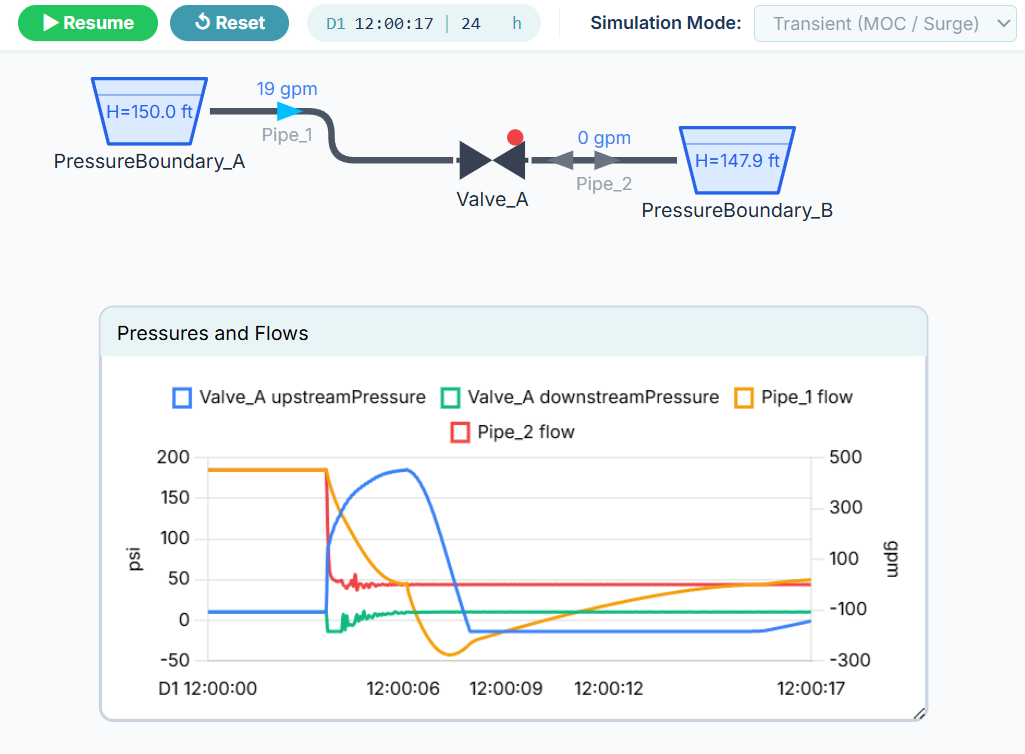
By exploring these examples, you can safely experiment with extreme operational changes and observe how the system reacts before designing your own networks.