Starting a New Project
IAMDD is designed to make project creation and management as intuitive as navigating a modern web map. This guide covers how to initialize new models from a blank slate, and manage your existing work.
Starting a New Project
There are two ways to begin a fresh, unsaved model: 1. Click the New Blank Model button on the public IAMDD landing page. 2. If you are already inside the model interface, open the File menu in the top left and select New.
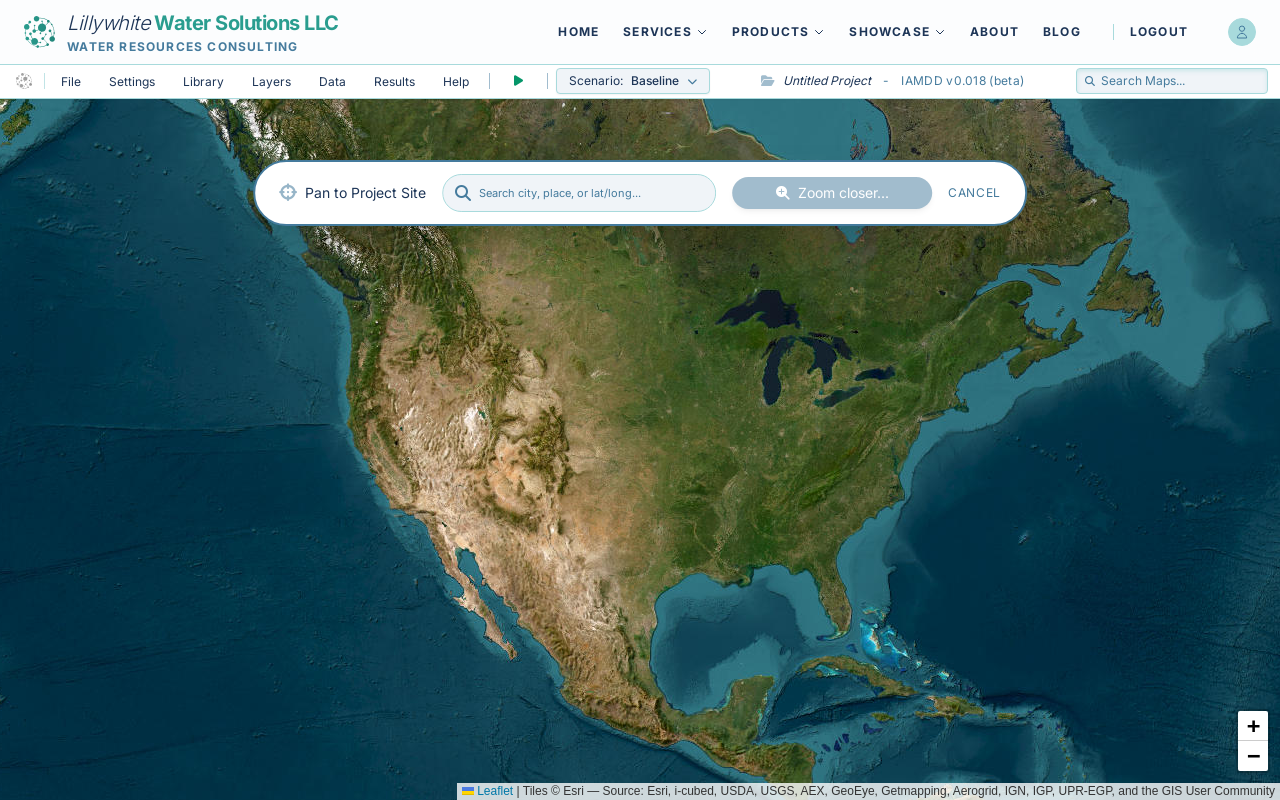
Doing either of these actions will load a blank map centered over North America. You will see a prominent search bar at the top of the screen prompting you to locate your project site.
Locating Your Site
Use the search bar to enter a city, place name, or latitude/longitude coordinates (e.g., "Sacramento, CA" or "38.58, -121.49"). The map will automatically fly to the requested location. Alternatively, you can simply pan and zoom using your mouse or trackpad.
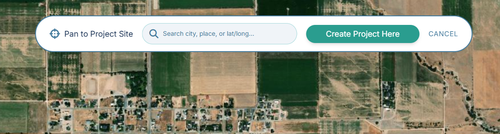
As you zoom closer to the ground (zoom level 13 or closer), the search bar will transform, presenting a "Create Project Here" button.
Initializing the Workspace
Once you are looking at your target area, click the "Create Project Here" button. You will be immediately prompted to enter a custom Project Name.
After naming your project, the map will lock your initial view, the spatial topology engine will initialize, and the simulation timeline will automatically reset to a two-week window starting from today.
Simultaneously, the platform will silently query regional databases (such as USDA NASS) based on your map's geographic coordinates. This automatically pre-loads your project Library with locally relevant Crop Types, Irrigation Methods, and Residential Demand Typologies, saving you from having to build these lists manually.
(Note: Live weather data are fetched on-demand later when you run a simulation.) Your model is now ready for you to draw fields, place nodes, and route pipes!
Your project name can be changed later at any time from the File -> Settings menu.
Searching the Map
In the top right corner of the navigation bar, you will find the "Search Maps..." entry field.
- Type your target geographic area (such as a city, county, or specific street address) into the search bar.
- Select the correct result from the dropdown list.
- The map will automatically fly and zoom directly to your selected location.
Note on Existing Projects: If you use the search bar to fly to a different location after you have already started building a model, it will not overwrite or reset your existing crop libraries, irrigation settings, or project data. Your libraries are locked to your project the moment you initialize it.