Time Series Data
Time Series Library
The Time Series Library allows you to import external, real-world data directly into your simulation. Currently, this library is strictly used to define dynamic Flow Boundary nodes, which allow you to force specific inflow or outflow rates at any given hour. This is incredibly useful for modeling historical events, simulating variable well outputs, or modeling large municipal diversions.
Importing Custom Data
- Open the Library Menu in the top navigation bar and select Time Series.
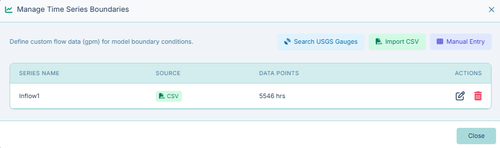
- Click Create New Time Series to open the management interface.
- You can manually enter data points hour-by-hour, or click Import CSV to paste data directly from an Excel spreadsheet or CSV file.
- Name the series appropriately (e.g., Summer River Inflow or Industrial Outflow).
Applying a Time Series
Once a Time Series is saved in your library, you must assign it to a specific point on your map: 1. Click on any standard Junction node to open its Properties Panel. 2. Change the Node Type to Flow Boundary. 3. Set the Direction to either Inflow (Source) (to inject water into the pipe network) or Outflow (to extract water from the network). 4. Select your newly created Time Series from the dropdown list.
When you run the simulation, the hydraulic engine will force that exact amount of flow (in GPM) into or out of the system at every corresponding hour of the timeline.