Irrigation Rotation Scheduling
Delivery Schedules (Agricultural Rotations)
In large agricultural networks, it is rarely possible to irrigate every single field simultaneously due to the physical capacity limits of the main trunk lines or pumps. Delivery Schedules allow you to enforce strict rotational irrigation.
When you assign a schedule to a pipe (acting as a headgate), you are applying a hard hydraulic constraint. If the schedule is "OFF", the engine forcibly closes the pipe (EN_STATUS = 0). Even if the downstream field's soil moisture drops below the wilting point, it will not receive water until its schedule turns "ON" again.
Managing Schedules
To access the schedules, click the Library Menu in the top navigation bar and select Delivery Schedules.
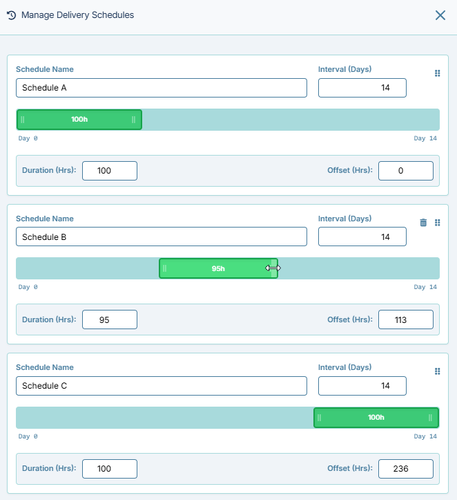
The interface allows you to create multiple independent schedules. Each schedule is defined by three key variables:
- Interval (Days): The total length of the repeating cycle. For example, a 14-day interval means this exact watering schedule repeats every two weeks.
- Duration (Hrs): How long the headgate stays OPEN during each interval. For example, 100 hours means the field gets exactly 100 hours of continuous water delivery per cycle.
- Offset (Hrs): This is the delay before the first cycle begins. This is the secret to staggering your deliveries!
- Example: If Schedule A has a
0hour offset, it starts watering immediately on Day 0. If Schedule B has a113hour offset, it waits 113 hours into the simulation before its first delivery window opens.
- Example: If Schedule A has a
The Interactive Timeline Slider
To make visualizing these overlaps easier, IAMDD features an interactive timeline slider:
- The light blue background bar represents the total Interval (e.g., 14 days).
- The green block represents your active Duration.
- You can physically click and drag the green block left or right to change the Offset, visually staggering your schedules so they don't overlap, ensuring a steady, manageable flow through your main trunk line instead of massive spikes in demand. You can also drag the edges of the green block to resize the Duration.
Applying a Schedule to a Pipe
Once you have created your schedules in the Library:
- Click on the Pipe (Link) on the map that acts as the delivery headgate for your field.
- In the Properties Panel on the right, locate the Rotation Schedule dropdown.
- Select the name of your schedule (e.g., "Schedule B").