Time Settings
The Time Settings dictate the boundaries and resolution of your simulation. Because IAMDD integrates with live historical weather data and dynamic crop models, the dates you choose directly impact the calculated agricultural demand.
- Simulation Start & End Date: Defines the overall timeframe. The engine will automatically query historical temperature, precipitation, and ET data for this exact period to drive the crop mass-balance equations.
- Time Step (1-Hour Resolution): To ensure a balance between high-fidelity results and rapid cloud-computing performance, the IAMDD hydraulic solver is hardcoded to a 1-hour time step.
What Happens During Each Time Step?
IAMDD uses an Extended Period Simulation (EPS) approach. For every hour between your start and end date, the engine performs a sequence of updates before handing the network over to the EPANET hydraulic solver:
- Weather & Agronomics Update: Hourly Precipitation and Evapotranspiration (ETo) data is pulled. Crop coefficients (Kc) are updated based on thermal time (Growing Degree Days), and the Soil Moisture Balance is calculated for every individual field.
- Irrigation Demand Generation: If a field's soil moisture drops below the Management Allowed Depletion (MAD) threshold, the engine calculates the required flow (GPM) based on crop stress, irrigation efficiency, and the physical capacity of the irrigation system.
- Municipal Demand Patterns: Diurnal (24-hour) multiplier patterns are applied to residential, commercial, and industrial zones to calculate their exact required flow for that specific hour of the day.
- Rotation Schedules & Headgates: Any pipes assigned to a specific delivery schedule (e.g., "7 days on, 7 days off") are programmatically opened or closed based on the current simulation hour.
- Hydraulic Solving: Finally, the EPANET solver calculates the resulting pressure at all junctions, flow velocities in all pipes, pump energy consumption, and changes to tank water levels.
Using the Interface
To change your simulation bounds, click the Settings > Time Settings option in the top navigation bar.
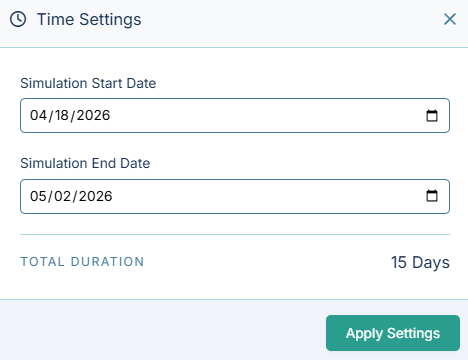
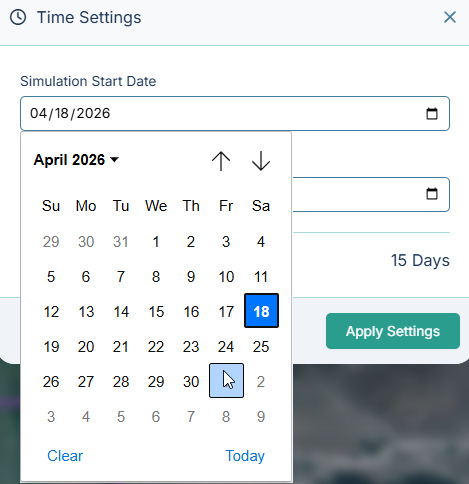
Simply select your new Start Date and End Date from the calendar dropdowns. The Total Duration will automatically calculate at the bottom. Click "Apply Settings" to save your changes.
(Note: Longer durations provide better long-term volume estimates, but will increase the time it takes the server to process the simulation).