Network Elements and Properties
The Drawing Toolbar
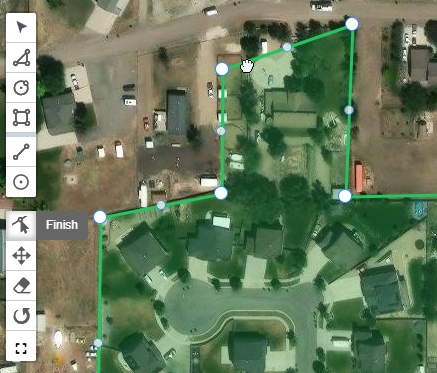
Located on the left side of the screen, the drawing toolbar provides all the CAD-like tools necessary to build your physical network.
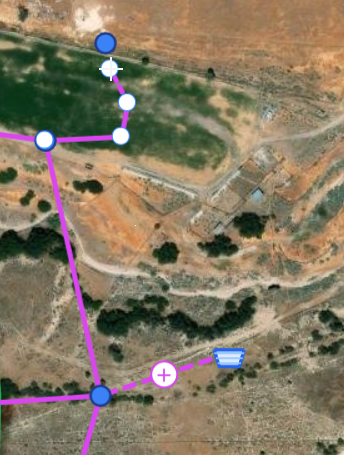
IAMDD goes beyond standard map drawing. It features an intelligent Topological Snapping Engine. If you drop a new Node directly onto an existing Pipe, or draw a new Pipe across an existing one, the engine will automatically snap them together, split the existing pipe in two, and merge the network topology so the hydraulic solver functions perfectly without requiring you to manually redraw anything.
Creation Tools
- Pointer / Select: Escapes out of any active drawing mode, returning your cursor to standard map panning and element selection.
- Polygon / Circle / Rectangle: Used to define the boundaries of your demand areas (e.g., drawing the perimeter of an alfalfa field or a residential neighborhood).
- Draw Pipe (jagged line): Used to trace the physical path of your water delivery network. Click sequentially to route the pipe around corners, and double-click to finish.
- Pro-Tip (Orthogonal Snapping): Hold down the
Shiftkey while drawing a pipe to lock your mouse to perfect 90-degree horizontal or vertical angles.
- Pro-Tip (Orthogonal Snapping): Hold down the
- Draw Node (circle marker): Used to drop a single point on the map. Nodes default to Junctions, but can be changed to Reservoirs or Tanks in the Properties Panel.
Modification Tools
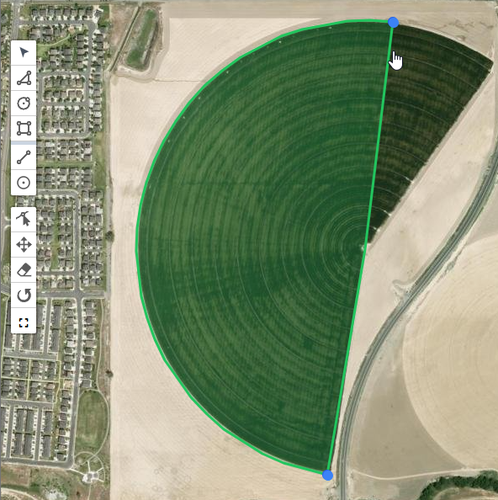
- Edit Vertices: Click this tool, then click on a drawn shape or pipe. You can click and drag individual corner points to fine-tune the geometry.
- Move: Allows you to click and drag an entire drawn element to a new location without altering its shape or size.
- Eraser: Click to quickly delete an element from the map. (Note: If you delete a Node, the engine will automatically warn you and delete any Pipes connected to it to prevent orphaned geometry).
- Rotate: Allows you to spin an area around its center point—particularly useful for aligning rectangular fields with property lines or roads.
- Scale Element (expand arrows): Select an agricultural area, then click this tool. You will be prompted to enter a multiplier (e.g.,
1.1for 10% larger, or0.9for 10% smaller) to instantly scale the field up or down while maintaining its exact shape.